Fee Management Complete Interactive Manual
Fee Module Master Operational Workflow Guide
Complete end-to-end setup guide with practical school examples
This manual explains how to configure school fees step-by-step using exact navigation paths, practical real-world scenarios (e.g. how Tuition Fee or Exam Fee is added), and field-by-field entry guidelines.
Step 1: How to Create Master Fee Heads?
Defining primary fee categories before class assignment
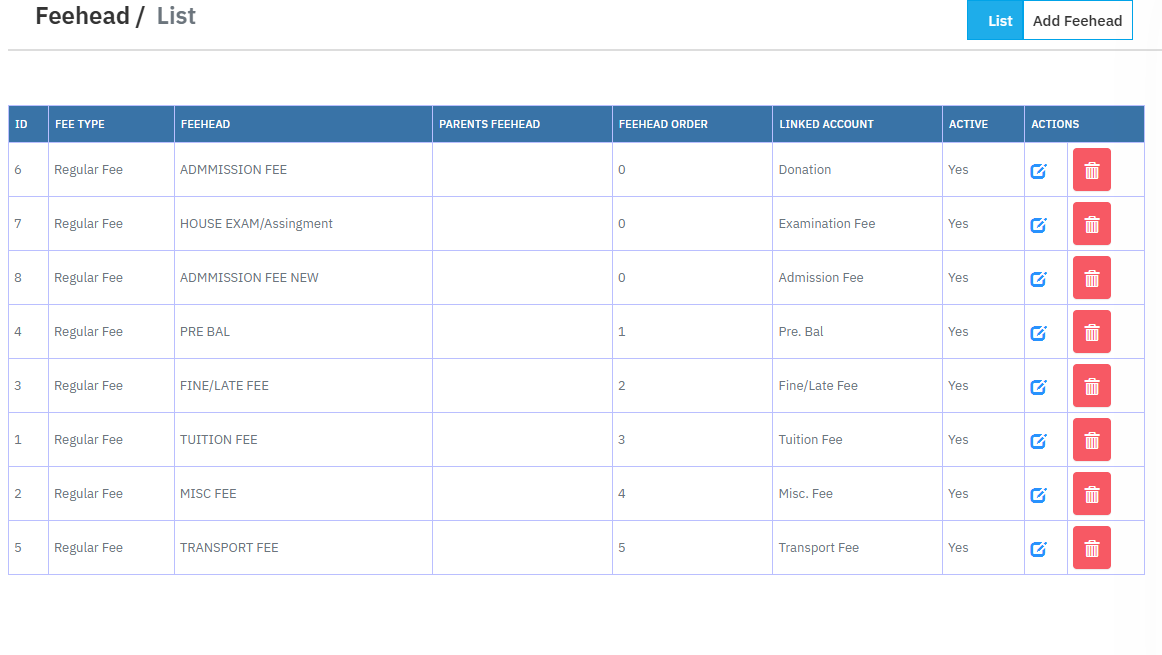
Practical Example: How Tuition Fee & Computer Fee are Added
Create "TUITION FEE" as a main head. For sub-charges like "COMPUTER LAB FEE", select TUITION FEE or MISC FEE as its Parent Fee Head.
Form Fields & Entry Instructions:
| Form Field Name | Sample Value | Field Action & Explanation |
|---|---|---|
| FeeHead Name | TUITION FEE | Type exact title of the fee appearing on receipts. |
| Parents FeeHead | [Select] / None | Select [Select] for independent fees or parent for sub-fees. |
| FeeHead Order | 1 | Sequence priority number (1 appears top on receipt). |
| Link GL Account | Tuition Fee Account | Auto-map sales general ledger accounts. |
| Fee Type | Regular Fee | Choose Regular Fee or Hostel Fee. |
| Status | Active | Select Active to make available for class allocation. |
 Click image to view full-screen preview 🔍
Step 2: How to Define Fee Structure for an Entire Class?
Setting up standard monthly, quarterly, or yearly class fee schedules
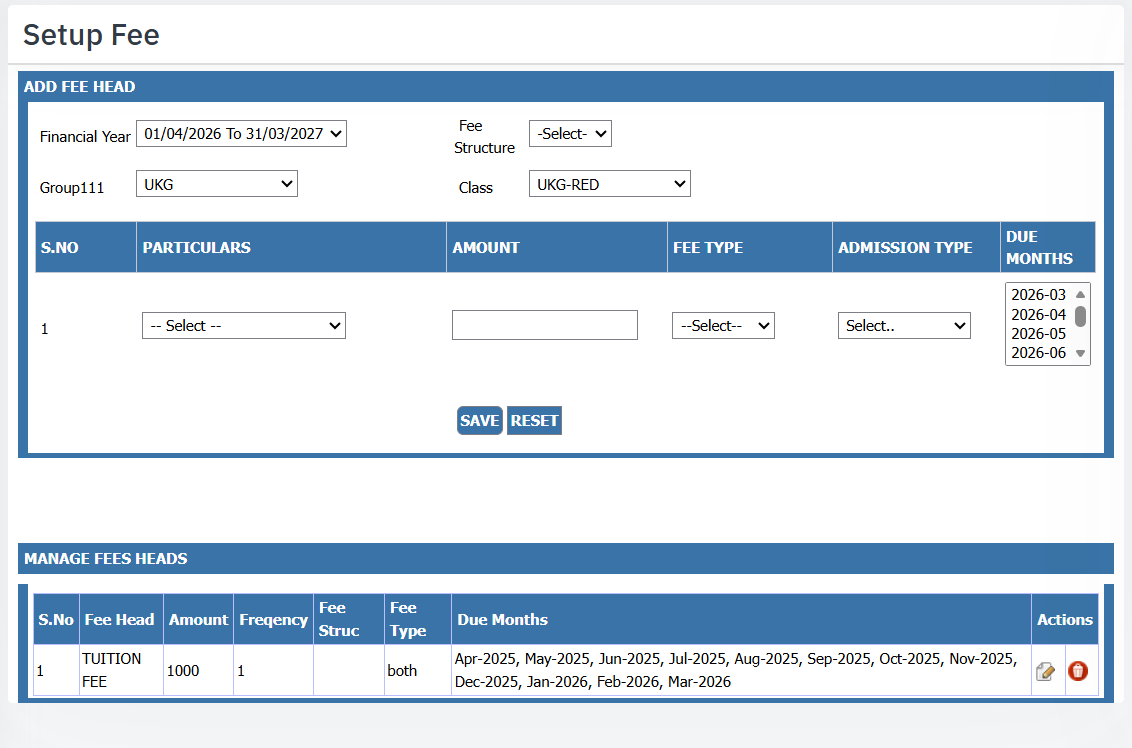
Practical Example: Defining Class 1ST-RED Fee Structure
For Class 1ST-RED, set Tuition Fee = ₹1,000 Monthly (April to March) & Admission Fee = ₹2,000 Yearly (April only, New Admission).
Form Fields & Entry Instructions:
| Form Field Name | Sample Value | Field Action & Explanation |
|---|---|---|
| Financial Year | 01/04/2026 To 31/03/2027 | Select active academic session. |
| Class Name | 1ST-RED (or All) | Select specific class section or All. |
| Particulars (Fee Head) | TUITION FEE | Choose Fee Head created in Step 1. |
| Amount | 1000.00 | Enter charge amount per installment. |
| Fee Type (Frequency) | Monthly | Recurrence: Monthly, Quarterly, Yearly. |
| Admission Type | Both | Select New Admission, Re-Admission, or Both. |
| Due Months | 2026-04 to 2027-03 | Check active installment due months. |
 Click image to view full-screen preview 🔍
Step 3: How to Assign Custom Fees to an Individual Student?
Single student fee override, Olympiad, Fine, or Miscellaneous fees
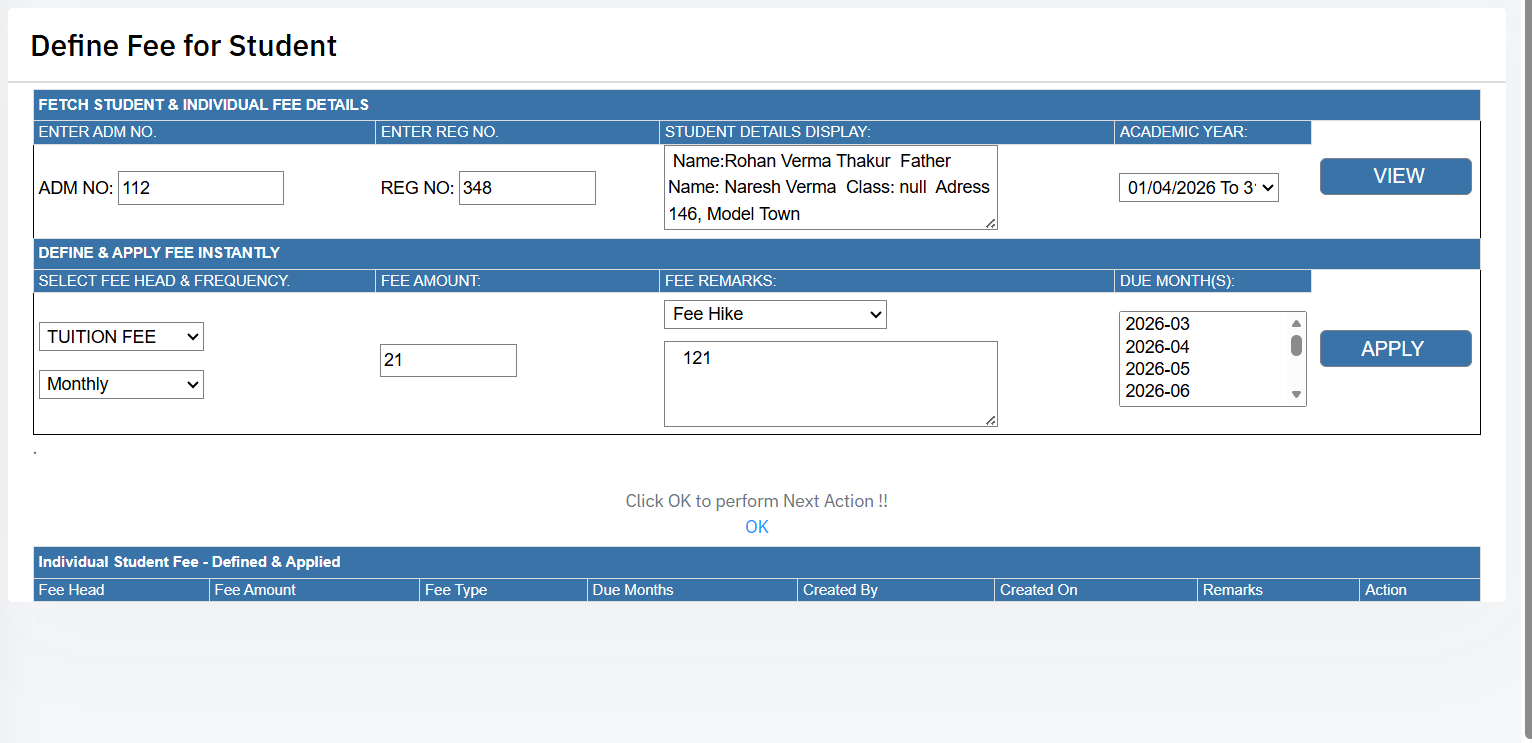
Practical Example: Adding Extra Olympiad Fee to Student "Aarav"
For Aarav Verma (Adm: 752), add an extra ₹500 Olympiad Fee. Search Aarav, choose MISC FEE, enter ₹500, set Remarks to Special Fee Imposed, and click Apply Instantly.
Form Fields & Entry Instructions:
| Form Field Name | Sample Value | Field Action & Explanation |
|---|---|---|
| Enter Adm No / Reg No | 752 (or Reg: 687) | Type student's Adm No or Reg No and click Fetch Details. |
| Select Fee Head | MISC FEE | Choose specific fee category to charge this student. |
| Fee Amount | 500.00 | Enter individual charge amount. |
| Fee Remarks Category | Special Fee Imposed | Select reason: Routine Misc, Special Fee, Fee Hike, or Fine. |
| Due Month(s) | 2026-04, 2026-05 | Select target installment months and click Apply Instantly. |
 Click image to view full-screen preview 🔍
Step 4: How to Allocate & Sync Fees Across an Entire Class?
Push defined class fee structures directly to student ledgers
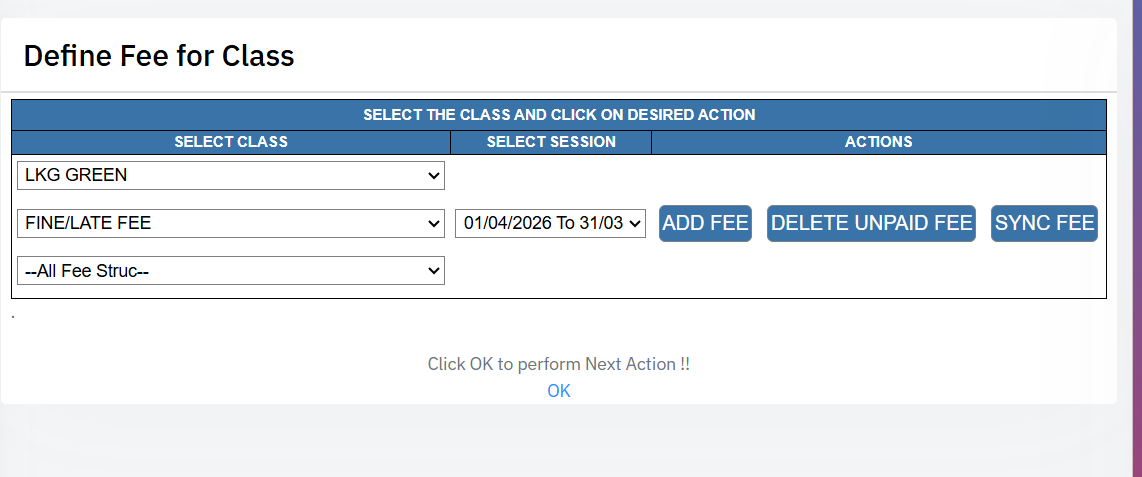
Practical Example: Pushing Class 1ST Fees To All Student Accounts
Select Class 1ST-RED, choose TUITION FEE, and click Add Fee. This instantly creates pending installments in the ledger accounts of all bacho in Class 1ST-RED.
Form Controls & Buttons Explained:
| Control / Field | Sample Value | Field Action & Explanation |
|---|---|---|
| Select Class | 1ST-RED | Target class section to allocate or sync. |
| Select Fee Head | TUITION FEE (or --All Fee Struc--) | Specific fee head or --All Fee Struc-- for batch allocation. |
| Add Fee Button | Click [Add Fee] | Pushes fee installments into all student ledgers. |
| Sync Fee Button | Click [Sync Fee] | Refreshes ledgers for new admissions. Shows "Info !! Nothing is left to Sync!" if already updated. |
| Delete Sync Button | Click [Delete Sync] | Removes un-collected sync allocations if assigned by mistake. |
 Click image to view full-screen preview 🔍
Step 5: How to Allocate & Manage Individual Student Fee Instalments?
Targeted student search, monthly list inspection, and manual fee reset
Practical Example: Inspecting Student "Rohan Verma" Ledger
Search student Rohan Verma (Adm: 112). Inspect monthly unpaid installments (e.g. MISC FEE ₹400.00) and click Apply Class Fee or Sync Fee to update Rohan's account individually.
Form Controls & Buttons Explained:
| Control / Field | Sample Value | Field Action & Explanation |
|---|---|---|
| Session | 01/04/2026 To 31/03/2027 | Select active academic session. |
| Search Student | Rohan Verma (Adm: 112) | Type Name or Adm No to load student's monthly fee list. |
| Apply Class Fee Button | Click [Apply Class Fee] | Forces standard class fee structure onto this student's account. |
| Sync Fee Button | Click [Sync Fee] | Synchronizes student fee heads with updated class rules. |
| Manual Read / Reset Unpaid | Click [Reset Unpaid] | Reads unpaid installments and resets uncollected charges safely. |
| Month | Particulars | Status | Base Amount | Payable | Frequency |
|---|---|---|---|---|---|
| Apr, 2026 | ADMMISSION FEE NEW | UNPAID | ₹ 100.00 | ₹ 100.00 | Yearly |
| Apr, 2026 | MISC FEE | UNPAID | ₹ 400.00 | ₹ 400.00 | Monthly |
Step 6: How to Delete Incorrect Unpaid Fees & Track Audit Logs?
Safe unpaid fee deletion & administrative audit history tracking
| Reg/Adm No | Student Particulars | Fee Head | Deleted Amount | Remarks | Date / Time | Deleted By |
|---|---|---|---|---|---|---|
| 687 / 752 | Aarav Verma (F: Rajesh) | TUITION FEE | ₹ 6,500.00 | wrong fee_DELETE ALL UNPAID | 2026-08-07 12:10:02 | superadmin |
Step 7: How to Collect Student Fee & Issue Receipts?
Counter collection point for processing multi-mode fee payments
Practical Example: Collecting Counter Fee for Student "Aarav Bansal"
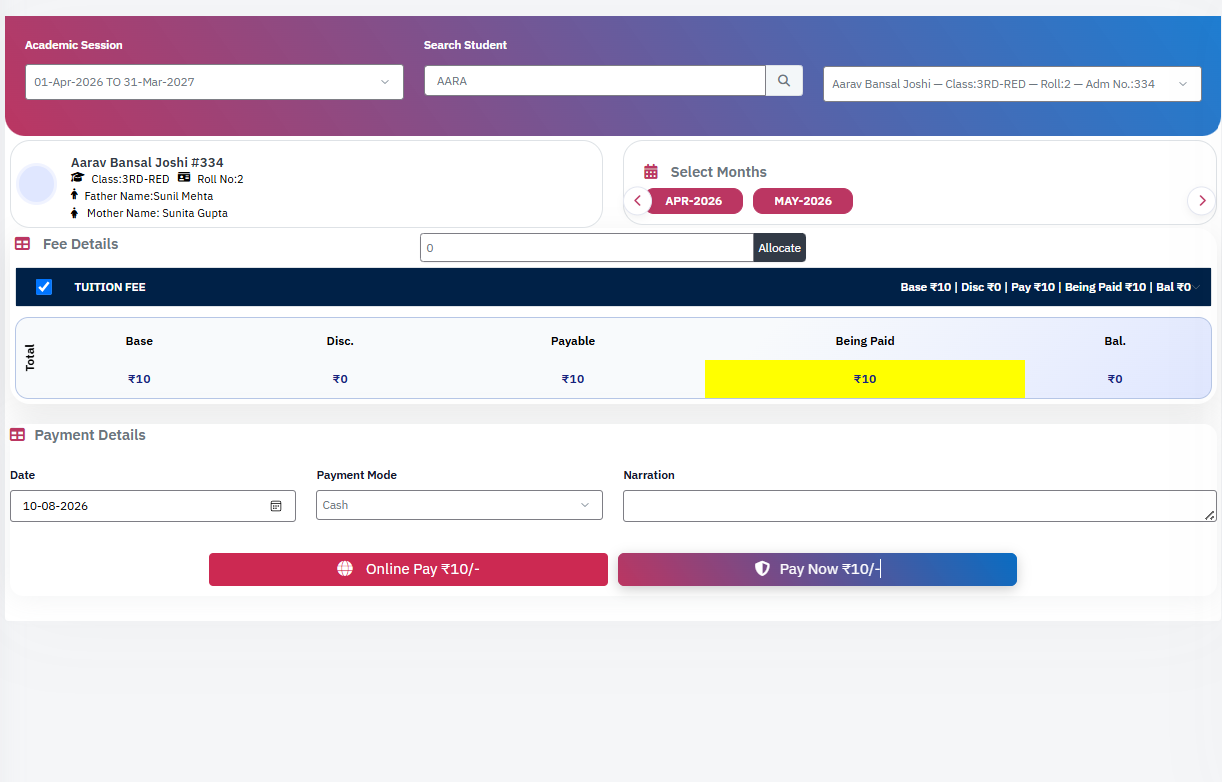
Student Aarav Bansal (Class: 3RD-RED, Adm No: 334) comes to the accounts counter to pay Tuition Fee for APR-2026 & MAY-2026. You select his name, check due months, verify ₹10 payable balance, choose Cash mode, and click Pay Now ₹10/- to issue an official printed payment receipt.
Form Fields & Action Controls Explained:
| Form Control / Field | Sample Entry Value | Field Action & Explanation |
|---|---|---|
| Academic Session | 01-Apr-2026 TO 31-Mar-2027 | Select the active financial year session for collection. |
| Search Student | Aarav Bansal Joshi #334 | Type Name, Adm No, or Roll No to fetch student profile & parent details. |
| Select Months | APR-2026, MAY-2026 | Check active pending installment months to calculate live payable amounts. |
| Fee Calculation Summary | Base: ₹10 | Disc: ₹0 | Pay: ₹10 | Displays real-time breakdown of Base Amount, Discounts, Payable Amount, Being Paid, and Remaining Balance. |
| Payment Mode | Cash / Swipe / Cheque / Online | Select collection channel: Cash, Swipe Card, Cheque, DD, Bank Deposit, Advance, or Online-Manual. |
| Narration | Paid at counter cash | Optional note or transaction reference number for auditing. |
| Pay Now Button | Click [Pay Now ₹10/-] | Processes payment, clears selected months, and generates an official printed fee receipt. |
| Online Pay Button | Click [Online Pay ₹10/-] | Triggers online payment gateway transaction or generates scan QR for digital payments. |
| Total Base | Total Discount | Total Payable | Being Paid | Balance Remaining |
|---|---|---|---|---|
| ₹ 10.00 | ₹ 0.00 | ₹ 10.00 | ₹ 10.00 | ₹ 0.00 |
 Click image to view full-screen preview 🔍
Step 8: How to Collect Miscellaneous & Ad-Hoc Fees?
Processing non-regular collections like Prospectus, Club, or Security Fees
Practical Example: Collecting Swimming Club Fee for "Aarav Gupta"
Suppose Aarav Gupta (Adm No: 558) joins the Swimming Club or purchases a prospectus. Since this is an ad-hoc charge separate from monthly tuition fees, you enter Admission No 558, select SWIMMING CHARGES, enter ₹500, choose Cash mode, and process the receipt without disturbing his regular monthly schedule.
Form Fields & Entry Guidelines:
| Form Field / Control | Sample Entry Value | Field Action & Explanation |
|---|---|---|
| Academic Session | 01/04/2026 To 31/03/2027 | Select the active academic session for the transaction. |
| Admission No / Reg No | 558 | Type the student's Admission or Registration Number to identify the payer. |
| Received From | Aarav Gupta / Parent Name | Specify the name of the person making the payment for record-keeping. |
| Fee Amount | 500.00 | Enter the exact amount collected for the miscellaneous charge. |
| Fee Frequency | Monthly / Yearly | Select the frequency category: Monthly, Bi-Monthly, Quarterly, Half Yearly, or Yearly. |
| Fee Head | SWIMMING CHARGES | Select target ad-hoc head (e.g. Prospectus Fee, Security Fee, Sports Fee, Chess Club, etc.). |
| Payment Mode | Cash / SWIPE / ONLINE | Choose mode: Cash, SWIPE, ONLINE, Cheque, DD, or BANK DEPOSIT. |
| Mark as Advance Payment | [Check / Uncheck] | Check this box if the amount should be recorded as advance to be settled later. |
Step 9: How to Configure Automated Late Fee Fine Setup?
Setting up milestone slabs, daily/monthly rules, cutoff dates, and fine caps
Practical Example: Late Fine Rule Beyond 10th of Every Month
Suppose fee is due on the 10th of every month. If a student pays after the 10th, you configure a Milestone-Based Fine: Day 1-8 delay = ₹50, Day 9-20 delay = ₹50, Day 21-30 delay = ₹50, with a maximum Fine Cap of ₹2,000 starting from June 2026 (`2026-06`).
Fine Calculation Algorithms Supported:
- Per Day: Calculates fine strictly on a daily rate for each delayed day.
- Per Month: Calculates fine on a flat monthly rate for each delayed month.
- Milestone based then Per Day: Calculates milestone fine amounts for the first month, then shifts to Per Day calculation.
- Milestone based then Per Month: Calculates milestone fine amounts for Month 1, then shifts to Per Month calculation.
- Manual Lum Sum: Fixed one-time lump-sum penalty charged once the fee becomes overdue.
- Per Day Then Per Month: Charges daily fine up to 30 days; beyond 30 days, shifts to monthly rate.
- Milestone based - Fix Last Milestone beyond 1 month: Applies milestones up to 30 days, then fixes Milestone 3 fine amount for subsequent months.
Form Fields & Entry Guidelines:
| Form Field / Control | Sample Entry Value | Field Action & Explanation |
|---|---|---|
| Fine Head Name | FINE/LATE FEE | Select or enter the master fine head category. |
| Fine Apply On Date | 10 (Day of month) | Cutoff day of the month after which late fine becomes active. |
| Fine Calc Base | Milestone based then Per Day | Choose algorithm rule for automated fine calculation. |
| Month Milestone Days (1, 2, 3) | Day 8, Day 20, Day 30 | Specify grace period day thresholds for Milestone Slabs 1, 2, and 3. |
| Amount Milestones (1, 2, 3) | ₹ 50, ₹ 50, ₹ 50 | Fine amount applicable at each respective milestone threshold. |
| Fine Caping | 2000.00 | Maximum late fine upper limit cap per student. |
| Fine w.e.f Month | 2026-06 | Effective start month from which fine rule takes effect. |
| Exclusions (Fee Heads / Months) | [Select Excluded Heads] | Exclude specific fee heads (e.g. Security Fee) or specific months from late fine. |
| Sr | Fine Name | Calc Base | Cutoff Date | M1 / M2 / M3 Days | M1 / M2 / M3 Amt | Fine Cap | w.e.f Month |
|---|---|---|---|---|---|---|---|
| 1 | FINE/LATE FEE | Per Day / Milestone | 10th | 8 / 20 / 30 Days | ₹50 / ₹50 / ₹50 | ₹ 2,000 | 2026-06 |
Step 10: How to Waive Off Late Fees with Log Remarks?
Exempting student late fine charges upon official administrative approval
Practical Example: Waiving Late Fine for "Piyush" (Medical Exemption)
Suppose student Piyush (Adm No: E127 / Reg No: 606) was absent due to illness and submitted a Principal-approved medical certificate. You enter Adm No E127, select session 2026-2027, enter remarks "Medical exemption approved by Principal", and click Add to Waive-Off List to forgive the late fine safely.
Form Fields & Entry Guidelines:
| Form Field / Control | Sample Entry Value | Field Action & Explanation |
|---|---|---|
| Academic Year | 01/04/2026 To 31/03/2027 | Select active academic session year for the waive-off operation. |
| Enter Adm No / Reg No | E127 (or Reg: 606) | Enter student Admission or Registration number to retrieve details. |
| Enter Remarks (Reason Log) | Medical Leave - Principal Approved | Mandatory note explaining why fine is waived. Recorded permanently in system logs. |
| Add To Waive-Off List Button | Click [Add To Waive-Off List] | Exempts student late fine amount and logs transaction history. |
| Adm No | Reg No | Student Name | Father Name | Action |
|---|---|---|---|---|
| E127 | 606 | PIYUSH | Amrit Kumar | Waived |
| 287 | P724 | KAIRAV PAAM | AARUN KUMAR | Waived |
Step 11: How to Reconcile Late Fines (Fine Utility)?
Auditing and batch re-calculating student fine figures across academic sessions
Practical Example: Auditing Late Fines for Session 2026 - 2027
Whenever fine setup rules are updated mid-session or when auditing previous year records for ABC Public School, you select session 2026 - 2027, enter the specific FID (Fine ID), and run reconciliation to ensure student ledgers match exact calculated fine slabs.
Form Fields & Entry Guidelines:
| Form Field / Control | Sample Entry Value | Field Action & Explanation |
|---|---|---|
| Academic Year | 2026 - 2027 (Almighty Public School) | Select active or historical academic year session for fine auditing. |
| Search by FID | FID-102 (or Specific Fine ID) | Enter target Fine ID number to filter and reconcile specific student fine records. |
| Reconcile Action Button | Click [Reconcile Fine] | Re-computes overdue fine figures and updates student account ledgers. |
Step 12: How to Assign Fee Discounts & Concessions?
Allocating percentage or lump-sum concessions for siblings, staff children, or special categories
Practical Example: Applying Sibling Discount for "Aarav Thakur"
Suppose student Aarav Thakur (Class: 5TH-OJAS, Adm: 225P) is eligible for a One Sibling Discount on his monthly fee (Base: ₹3,800). You select Aarav, choose One Sibling under Nature, select Percent(%) or Lump-sum, use ⚡ Bulk Apply to copy the rule across all months (Sep 2026 to Mar 2027), and click Apply Discount.
Form Fields & Entry Guidelines:
| Form Field / Control | Sample Entry Value | Field Action & Explanation |
|---|---|---|
| Select Session | 01-Apr-26 To 31-Mar-27 | Select the active academic session for discount application. |
| Search / Select Student | AARAV THAKUR | 5TH-OJAS | Adm: 225P | Search and select target student to load monthly fee head breakdown. |
| Concession Nature Category | One Sibling / Staff Discount / Blood Relation | Choose category: One Sibling, Two Sibling, Staff Discount, Mid Year Admission, Coaching Relaxation, etc. |
| Discount Type | Percent(%) / Lump-sum | Select Percent(%) for percentage reduction or Lump-sum for flat deduction. |
| ⚡ Bulk Apply Control | Apply to all MONTHLY FEE rows | Clicking Bulk applies the selected Nature, Type, and Value to all future month rows at once. |
| Reason Dropdown | Discount/Fee Waive Off | Select system reason: Discount/Fee Waive Off, Facility Not Availed, Wrong Entered, or Other. |
| Additional Remarks | Sibling concession verified by admin | Type custom explanatory notes for audit trail tracking. |
| Apply Discount Button | Click [Apply Discount] | Saves concession details and updates student's net payable monthly balances. |
| # | Month | Fee Head | Base ₹ | Payable ₹ | Nature | Type |
|---|---|---|---|---|---|---|
| 1 | 2026-09 | MONTHLY FEE NEW | ₹ 3,800 | ₹ 3,800 | One Sibling | Percent(%) |
| 2 | 2026-10 | MONTHLY FEE NEW | ₹ 3,800 | ₹ 3,800 | One Sibling | Percent(%) |
Step 13: How to Inspect Student Financial Ledger Reports?
Complete annual financial statement and month-by-month payment tracking
Practical Example: Inspecting Annual Ledger for "Aarav Thakur"
Suppose parent of Aarav Thakur (Class: 5TH-OJAS, Adm: 225P) asks for an account statement. You select session 2026-2027, choose Aarav Thakur, and view his annual totals (Total Base: ₹60,080.00, Paid: ₹26,200.00, Balance: ₹33,880.00) along with individual monthly payment statuses (Paid through August 2026).
Form Controls & Ledger Indicators Explained:
| Control / Metric | Sample Entry Value | Field Purpose & Explanation |
|---|---|---|
| Academic Session | 01-Apr-2026 TO 31-Mar-2027 | Select the active academic session year for statement generation. |
| Search Student | AARAV THAKUR | 5TH-OJAS | Adm: 225P | Type Name, Adm No, or Roll No to retrieve student profile and parents' details. |
| Total Base Amount | ₹ 60,080.00 | Gross sum of all fee heads defined for the entire session. |
| Total Paid vs Balance | Paid: ₹26,200 | Bal: ₹33,880 | Shows cumulative payments collected vs remaining uncollected fees. |
| Month | Base ₹ | Payable ₹ | Paid ₹ | Balance ₹ | Status |
|---|---|---|---|---|---|
| April 2026 | ₹ 6,840.00 | ₹ 6,840.00 | ₹ 6,840.00 | ₹ 0.00 | PAID |
| May 2026 | ₹ 4,840.00 | ₹ 4,840.00 | ₹ 4,840.00 | ₹ 0.00 | PAID |
| September 2026 | ₹ 4,840.00 | ₹ 4,840.00 | ₹ 0.00 | ₹ 4,840.00 | UNPAID |
Step 14: How to Allocate Custom Fee Heads & Settlement Rules?
Filtering student groups (Boarders/Day Scholars) and defining custom settlement amounts
Practical Example: Custom Fee for "BOARDERS" in Session 2026 - 2027
Suppose you want to allocate a custom hostel/boarding fee head to only **BOARDERS** who use transport. You select session 01-04-2026 - 31-03-2027, filter by Student Group BOARDERS and Transport Status Transport Allocated, locate student AADHRIT SHARMA (NUR-OJAS), click Add, and configure comma-separated custom settlement amounts.
Form Controls & Filter Parameters Explained:
| Control / Filter | Sample Entry Value | Field Action & Explanation |
|---|---|---|
| Active Session | 01-04-2026 - 31-03-2027 | Select the active academic session for custom allocation. |
| Classes & Student Group | NUR-OJAS | BOARDERS | Filter target students by Class and Group category (BOARDERS, DAY SCHOLARS, or All Groups). |
| Transport Status | Transport Allocated | Filter by transport allocation (All Students or Transport Allocated). |
| Quick Search & Add Action | AADHRIT SHARMA #282K | Type student name and click Add to open Fee Heads Configuration. |
| Allow Custom Settlement | Multiple amounts (e.g. 500, 1000, 1500) | Enable custom amount settlement to accept comma-separated flexible installment payments. |
Step 15: How to Verify & Reconcile Online Gateway Payment Orders?
Verifying pending or un-cleared online transaction statuses directly with Payment Gateways
Practical Example: Verifying "Pending" Online Payment for a Parent
Suppose a parent paid ₹4,840 online via Gateway, the money was deducted from their bank account, but the ERP receipt was not generated due to network timeout. You select the transaction date, search by Adm No or Phone Number, review the Order ID and Gateway response, and click Verify to reconcile the payment into the student ledger.
Form Controls & Verification Table Columns Explained:
| Control / Column Name | Sample Entry Value | Field Action & Explanation |
|---|---|---|
| Select Date | 2026-08-10 | Select the date on which the online payment was attempted by the parent. |
| Search Input | 225P (Adm No / Name / Phone) | Filter pending orders using Student ID, Admission No, Student Name, or Mobile Number. |
| Order ID / Order ID (New) | ORD2026081099231 | Unique payment gateway reference order number generated at the time of checkout. |
| Gateway & Trans Response | ICICI / Razorpay (SUCCESS / PENDING) | Shows bank gateway status response and mapped Fine/Fee ID (FID). |
| Verify Action Button | Click [Verify] | Pings payment gateway API to fetch live status and auto-credit student ledger upon successful payment. |
| Student Name | Adm No | Order Date | Order ID | Amount | Trans Response | Gateway | Action |
|---|---|---|---|---|---|---|---|
| No pending records for this date. (All online transactions are verified) | |||||||
Step 16: How to Fetch & Process Unprocessed (Broken) Fees?
Recovering and settling incomplete online payments trapped due to connection timeouts
Practical Example: Settling Trapped Online Payment for "Samayra Chauhan"
Suppose two online transactions (₹9,400 on 3-Jul-2026 and ₹4,100 on 5-Jul-2026, Total: ₹13,500.00) were deducted from parents' accounts but stuck due to browser closure. You enter Date From and Date To, click Fetch Unprocessed Fees, locate student Samayra Chauhan (FID: 12400), and click Process / Settle Action to post the fees into her account.
Form Controls & Recovery Indicators Explained:
| Control / Indicator | Sample Entry Value | Field Action & Explanation |
|---|---|---|
| Date From / Date To | 01-Jul-2026 To 10-Jul-2026 | Select the date range during which incomplete online transactions occurred. |
| Fetch Unprocessed Fees Button | Click [Fetch Unprocessed Fees] | Queries the database to isolate orphaned transactions requiring manual settlement. |
| Total Records & Amount Summary | Total Records: 2 | Total Amount: ₹ 13,500.00 | Displays real-time count and cumulative value of trapped payments. |
| FID (Fee ID) & Student Details | 12400 — SAMAYRA CHAUHAN (₹ 9,400.00) | Displays unique fee ID, student profile, and trapped transaction amount per date group. |
| Action Button | Click [Process / Settle] | Settle the transaction and posts payment into student's active fee ledger. |
| Date Group | Sr No | FID | Student Name | Amount | Action |
|---|---|---|---|---|---|
| 3-Jul-2026 (1 record) | 1 | 12400 | SAMAYRA CHAUHAN | ₹ 9,400.00 | Settle |
| 5-Jul-2026 (1 record) | 2 | 12401 | STUDENT 2 | ₹ 4,100.00 | Settle |
Step 17: How to Manage Student Pocket Money Transactions (Cr/Dr Wallet)?
Crediting parent deposits and debiting personal expenses for boarding students
Practical Example: Debiting Bus Fare for Student "Pragati Bisht"
Suppose boarding student Pragati Bisht (Class: 9TH-OJAS, Adm: 77S) needs ₹1,134 from her pocket money wallet for bus fare & coaching fees. You select Class 9TH-OJAS, choose Pragati, enter Amount 1134, choose Dr (Debit), select Cash mode, type Narration "BUS FAIR + COACH FEE", and submit. Her wallet balance updates from ₹1,385 Dr accordingly.
Strict ERP Rule — Entry Non-Reversibility:
Note: Entries once created cannot be deleted or reversed directly. In case of a wrong entry, you must create another counter-entry (e.g., a Credit entry against an incorrect Debit) to cross-balance the mistake.
Form Controls & Fields Guide:
| Control / Field | Sample Entry Value | Field Action & Explanation |
|---|---|---|
| Transaction Date | 2026-07-09 | Select the date on which the deposit or withdrawal took place. |
| Select Class & Student | 9TH-OJAS | PRAGATI BISHT (#77S) | Choose the student's class to load enrolled residential students. |
| Amount & Cr/Dr Type | 1134.00 | Dr (Debit) | Select Cr to deposit money into wallet or Dr to record student spending. |
| Pay Mode | Cash / Online / Swipe / Bank Transfer | Select payment channel: Cash, Online, Swipe, Bank Transfer, Cheque, Demand Draft, or Kind. |
| Narration | BUS FAIR + COACH FEE | Enter mandatory descriptive reason for audit verification. |
| Trans Date | Adm No | Student Name | Class | Amount | Balance | Pay Mode | Narration | Created By |
|---|---|---|---|---|---|---|---|---|
| 2026-07-09 | 77S | PRAGATI BISHT | 9TH-OJAS | ₹ 1,134 Dr | ₹ 1,385 Dr | Cash | BUS FAIR + COACH FEE | RINGCHEN MEDUP |
Step 18: How to Grant or Revoke Online Fee Payment Access?
Controlling mobile app and portal online fee payment permissions individually or in bulk
Practical Example: Enabling Online App Payment for Class "5TH-OJAS"
Suppose you want to allow parents of Class 5TH-OJAS to pay fees online via Mobile App. You select session 01-04-2026 to 31-03-2027, choose Class 5TH-OJAS, locate student AARAV THAKUR (Reg: 612 / Adm: 225P), and switch his Fee Access option to Enabled (or use Bulk Actions ➔ Enable (Y) for the entire section).
Form Controls & Permission Switches Explained:
| Control / Option | Sample Value | Field Action & Explanation |
|---|---|---|
| Academic Year | 01-04-2026 to 31-03-2027 | Select the active academic session year. |
| Class Filter | 5TH-OJAS (or All Classes) | Select a specific class section or All Classes to filter the student list. |
| Search Filter Input | 225P (Adm / Reg / Name) | Type Admission No, Registration No, or Student Name to search across classes. |
| Bulk Actions Dropdown | Enable (Y) / Disable (N) | Applies Enable (Y) or Disable (N) online payment access to all displayed class students in one click. |
| Individual Fee Access Radio | Enabled / Disabled Radio Switch | Toggles online payment portal/app access permissions for a specific student. |
| # | Reg No | Adm No | Student Name | Father Name | Class | Fee Access Switch |
|---|---|---|---|---|---|---|
| 1 | 612 | 225P | AARAV THAKUR | Susheel Kumar | 5TH-OJAS | Enabled (Y) |
Step 19: How to Allocate / De-Allocate Transport Fees & Custom Allowances?
Assigning bus routes, de-allocating bus fees, or permitting custom transport payments
Practical Example: Allowing Custom ₹50 Transport Fee for "Aarvi Verma"
Suppose student AARVI VERMA (Adm: E133 / Reg: 175) uses transport for half-route and is permitted a custom fee of ₹50 instead of standard route fare. You select session 01/04/2026 To 31/03/2027, enter Adm No E133, enter Allowed Amount 50, type remarks "Half-route transport fare approved by Transport Head", and click Add To Allow Custom Fee.
Form Fields & Action Controls Explained:
| Control / Field | Sample Entry Value | Field Action & Explanation |
|---|---|---|
| Academic Year | 01/04/2026 To 31/03/2027 | Select the active academic session year for transport allocation. |
| Enter Adm No / Reg No | E133 (or Reg: 175) | Type Admission No or Registration No to fetch student particulars (*AARVI VERMA, Father: SH. SUDHIR KUMAR VERMA*). |
| Allowed Amount(s) & Remarks | 50 (Comma-separated) + Remarks | Enter custom allowed amounts (e.g. 50, 100) and log explanation remarks. |
| Add To Allow Custom Fee Button | Click [Add To Allow Custom Fee] | Saves custom transport fee allowance and logs administrative approval history. |
| Adm No | Reg No | Student Name | Father Name | Amount Allowed | Action |
|---|---|---|---|---|---|
| E133 | 175 | AARVI VERMA | SH. SUDHIR KUMAR VERMA | ₹ 50.00 | De-Allocate |
Step 20: How to Perform Bulk Sync Operations on a Chosen Class?
Class-wide batch synchronization for Transport, Fee Groups, Student Ledgers, and GL Entries
Practical Example: Refreshing Ledgers & Fee Groups for Class "UKG-OJAS"
Suppose you updated fee structures, transport routes, or student groups mid-session for Class UKG-OJAS or 1ST-OJAS. To ensure all student ledgers reflect the changes without updating students one-by-one, locate the class row in the grid and click Sync FEE Group, Sync STUD AC Ledger, or Sync Transport.
Bulk Sync Action Buttons & Functions Explained:
| Action Button | Sample Target Class | Action Purpose & Operational Effect |
|---|---|---|
| Sync Transport | 1ST-OJAS / UKG-OJAS | Batch-synchronizes bus routes, pickup points, and monthly transport fee amounts for all students in the class. |
| Sync FEE Group | NUR-OJAS / UKG-OJAS | Re-aligns class fee structures, concession categories, and fee heads across all student accounts. |
| Sync STUD Group | 2ND-OJAS | Refreshes student group designations (e.g., Boarders, Day Scholars, Day Care). |
| Sync STUD AC Ledger | 1ST-OJAS | Re-computes paid vs unpaid installments and updates student account ledger balances. |
| Sync STUD GL Entries | NUR-OJAS | Synchronizes student accounting General Ledger (GL) sales entries for financial reporting. |
| S.No | Class Name | Available Class Sync Actions |
|---|---|---|
| 1 | NUR-OJAS |
Sync Transport
Sync FEE Group
Sync STUD Group
Sync STUD AC Ledger
Sync STUD GL Entries
|
| 2 | UKG-OJAS |
Sync FEE Group
Sync STUD Group
|
Step 21: How to Allocate Student Roll Numbers w.r.t Fee Payment Order?
Automated class-wise roll number generation based on fee payment timestamps
Practical Example: Allocating Roll Numbers for Class "1ST VEDA"
Suppose your school policy assigns class roll numbers based on fee payment priority for Session 01-Apr-2026 to 31-Mar-2027. For Class 1ST VEDA (13 Students with Receipts), the student who paid their fee receipt first is proposed Roll No 1, the second gets Roll No 2, and so on. You click Preview / Allocate, verify the list, and confirm assignment.
System Logic — First-Paid Priority Allocation:
Rule: "Student who paid receipt first will be assigned roll number first." Clicking Preview / Allocate loads the proposed order based on payment timestamps before saving roll numbers to student profiles.
Form Controls & Grid Indicators Explained:
| Control / Column | Sample Grid Value | Field Action & Operational Purpose |
|---|---|---|
| Class Name | 1ST VEDA / PLAY GROUP | Displays class sections configured in the active academic session. |
| Students With Receipts | 13 Students | Shows the total count of enrolled students in the class who have cleared fee receipts. |
| Preview / Allocate Action | Click [👁 Preview / Allocate] | Opens modal preview showing proposed Roll No order sorted by payment date and time. |
| S.NO | Class | Students With Receipts | Actions |
|---|---|---|---|
| 1 | SPORTS DUTY | 0 | |
| 4 | 1ST VEDA | 13 |
Step 22: How to Define & Manage Master Fees Grouping?
Classifying students into broader fee groups such as Day Scholars and Boarders
Practical Example: Creating "DAY SCHOLARS" & "BOARDERS" Groups
Suppose your school has different fee rules for day scholars versus residential students. You navigate to Fees Grouping, enter Group Name "DAY SCHOLARS", set Status to Active, and click Save. Next, you create a second group named "BOARDERS". These groups become available across all fee definition and allocation filters.
Form Fields & Action Controls Explained:
| Control / Field | Sample Entry Value | Field Action & Operational Purpose |
|---|---|---|
| Group Name | DAY SCHOLARS / BOARDERS | Type the title of the master fee classification group. |
| Status Radio Switch | Active (or Inactive) | Select Active to make this group available for class fee definitions and filtering. |
| Form Buttons | Save / Update or Cancel | Click Save to record the new group or Cancel to clear the form input fields. |
| Sr No | ID | Group Name | Inactive Status | Action |
|---|---|---|---|---|
| 1 | 1 | DAY SCHOLARS | 0 (Active) | Edit |
| 2 | 2 | BOARDERS | 0 (Active) | Edit |
Step 23: How to Define & Manage Student Grouping?
Classifying enrolled students into administrative categories like Day Scholars and Boarders
Practical Example: Creating "DAY SCHOLARS" & "BOARDERS" Groups
Suppose you need to categorize students for hostel and day-care management. You navigate to Student Grouping, type Group Name "DAY SCHOLARS", select Status Active, and click Save. Then you repeat the process to create the "BOARDERS" group. These groups allow quick filtering in student ledgers, custom fee allocation, and transport mapping.
Form Fields & Action Controls Explained:
| Control / Field | Sample Entry Value | Field Action & Operational Purpose |
|---|---|---|
| Group Name | DAY SCHOLARS / BOARDERS | Type the name of the student category group. |
| Status Radio Switch | Active (or Inactive) | Select Active to enable this group across student profiles and fee filters. |
| Form Buttons | Save / Update or Cancel | Click Save to store the group or Cancel to reset input fields. |
| Sr No | ID | Group Name | Inactive Status | Action |
|---|---|---|---|---|
| 1 | 1 | DAY SCHOLARS | 0 (Active) | Edit |
| 2 | 2 | BOARDERS | 0 (Active) | Edit |
Step 24: How to Rename Fee Month Display Labels?
Mapping raw system database month codes into customized receipt display labels
Practical Example: Renaming "2020-04" to "APR-20" for Receipts
By default, system month entries are stored in date formats like 2020-04 or 2021-01. To ensure fee receipts, app notifications, and student ledgers display short, readable labels, you open Renaming and update 2020-04 to APR-20, 2020-05 to MAY-20, and 2021-01 to JAN-21.
Form Fields & Grid Columns Explained:
| Column / Control | Sample Grid Value | Field Action & Operational Purpose |
|---|---|---|
| Old Name | 2020-04 / 2021-01 | System default raw session month identifier. |
| Rename (Custom Label) | APR-20 / JAN-21 | Type the customized label to print on student fee slips and receipts. |
| Active Status | 1 (Active) | Shows whether the month mapping rule is active in the system. |
| Actions Control | Click [Edit / Update] | Saves and updates the customized month label. |
| ID | Old Name | Rename (Display Label) | Active Status | Actions |
|---|---|---|---|---|
| 1 | 2020-04 | APR-20 | 1 (Active) | Edit |
| 2 | 2020-05 | MAY-20 | 1 (Active) | Edit |
| 10 | 2021-01 | JAN-21 | 1 (Active) | Edit |
Step 25: How to Search & Inspect Fee Payment Receipts?
Auditing transaction logs, searching by payment reference, and re-printing fee slips
Practical Example: Verifying Online Receipt for "Panaysha Rana"
Suppose parent of Panaysha Rana (Adm No: 308, Father: Amit Rana) requests a duplicate receipt copy for an online transaction of ₹3,800 paid on 2026-08-13 (Ref No: 14875). You open View Receipt Detail, enter Adm No 308 or Pay Mode ONLINE, filter the entry, inspect FID 12709, and click Print / View Action to download or re-print the official fee slip.
Form Search Filters & Columns Explained:
| Control / Column Name | Sample Value To Enter | Field Action & Operational Purpose |
|---|---|---|
| Receipt NO / ADM NO | 308 (Adm No) | Filter receipts by specific Receipt Number or Student Admission Number. |
| Student Name / Father Name | PANAYSHA RANA / AMIT RANA | Filter by student or parent name to locate historical receipts. |
| Pay Mode Dropdown | ONLINE (Cash, SWIPE, Cheque, DD) | Filter by collection channel: cash, SWIPE, ONLINE, cheque, dd, or BANK DEPOSIT. |
| Pay Reference No | 14875 | Search by transaction reference, UTR, or bank cheque number. |
| Search / Cancel Buttons | Click [Search] or [Cancel] | Executes search query or resets all input filter fields. |
| S.No | FID | ADM NO | Student Name | Father Name | R Date | Due Amt | Paid Amt | Pay Mode | Pay Ref No | Action |
|---|---|---|---|---|---|---|---|---|---|---|
| 1 | 12709 | 308 | PANAYSHA RANA | AMIT RANA | 2026-08-13 | ₹ 3,800 | ₹ 3,800 | ONLINE | 14875 | Print Slip |
Step 26: How to View Fee Receipts History & Execute Quick Actions?
Tracking payment timeline, searching by receipt number, printing, editing, and canceling receipts
Practical Example: Inspecting Receipt "almighty1235" for "ANAYSHA RANA"
Suppose parent of ANAYSHA RANA visits the counter to get a printout of Receipt No almighty1235 (₹3,800.00 paid on 13-Aug-2026). You open Receipts History, enter almighty1235 in Receipt No search box, locate the entry, and click the Print (🖨️) icon for instant printing or click Pay Next to process her next pending installment.
Form Search Filters & Quick Action Controls Explained:
| Control / Action Icon | Sample Entry Value | Field Action & Operational Purpose |
|---|---|---|
| Select Session | 01-Apr-2026 TO 31-Mar-2027 | Select active academic year to load relevant session payment history. |
| Receipt No. Input | almighty1235 | Type specific receipt number and click the search icon. |
| Search Student Input | ANAYSHA RANA (≥3 chars) | Type at least 3 characters of student name or admission number to filter results. |
| 🖨️ Print Icon Button | [Print Icon] | Opens print dialog / downloads official PDF fee receipt slip. |
| 👁️ View Icon Button | [View Icon] | Opens detailed modal showing fee head-wise breakdown (Tuition, Transport, Fine, etc.). |
| ✏️ Edit Icon Button | [Edit Icon] | Allows authorized admins to edit receipt remarks or payment modes. |
| 🗑️ Delete Icon Button | [Delete Icon] | Cancels/deletes the receipt and restores unpaid installments to student ledger (logged in audit trail). |
| Pay Next Button | Click [Pay Next] | Redirects directly to Fee Counter screen to collect the student's next installment. |
| RECEIPT NO. | DATE | AMOUNT | STATUS | ACTION CONTROLS |
|---|---|---|---|---|
| almighty1235 👤 ANAYSHA RANA | 13-Aug-2026 | ₹ 3,800.00 | Paid |
🖨️
👁️
✏️
🗑️
🔀
|
| almighty1234 👤 ARNAV | 03-Aug-2026 | ₹ 5,400.00 | Paid |
🖨️
👁️
✏️
🗑️
🔀
|
Step 27: How to Generate Daily Collection Reports & Daybook?
Auditing cashier collections, payment mode summaries, and downloading daily financial daybooks
Practical Example: Evening Counter Cash Audit for Date 13-Aug-2026
At the end of the day, the Chief Accountant needs to audit cashier poojathakur's cash counter collections for 13-Aug-2026. You select User Name poojathakur, set Date From/To 2026-08-13, check Display Pay Mode wise Summary, and click Search. The system displays line-item receipts along with Cash vs Online totals and provides a Daybook download button for closing accounts.
Form Search Filters & Report Options Explained:
| Control / Filter | Sample Value To Select | Field Action & Operational Purpose |
|---|---|---|
| Payment Mode / User Name | cash / poojathakur (or ALL) | Filter collections by mode (cash, ONLINE, SWIPE, cheque) or specific cashier operator username. |
| Class & Fee Group Filter | 5TH-OJAS | DAY SCHOLARS | Filter collections by specific class sections or fee classification groups. |
| Date From / Date To | 2026-08-13 TO 2026-08-13 | Select single date for daily daybook or date range for periodic collection audit. |
| Report Checkboxes | Pay Mode wise / Detailed Daybook | Check Display Pay Mode wise Summary, Detailed Daybook, or Student Wise Consolidated formats. |
| Daybook Download Button | Click [Daybook download] | Exports complete daily collection report in formatted PDF / Excel file. |
| S.No | RECEIPT NO | DATE | ADM NO | STUD NAME | CLASS | FEE AMT | TOTAL | PAY MODE | REF NO |
|---|---|---|---|---|---|---|---|---|---|
| 1 | almighty1235 | 2026-08-13 | 308 | PANAYSHA RANA | 5TH-OJAS | ₹ 3,800 | ₹ 3,800.00 | ONLINE | 14875 |
TOTAL PAYMENT SUMMARY - PAYMENT MODE WISE
Step 28: How to Generate Ledger Head-Wise Financial Reports?
Auditing revenues, collections, and outstanding balances broken down by individual fee heads
Practical Example: Auditing Fee Head Breakdown for "ANSHIKA (Class: 8TH-OJAS)"
Suppose management needs a head-wise collection report for student ANSHIKA (Adm No: E105) in Class 8TH-OJAS. You select session 01-Apr-2026 - 31-Mar-2027, filter by Class 8TH-OJAS, and search for ANSHIKA. The report displays separate rows for MISC EXP. (Fully Paid: ₹2,000), MONTHLY FEE (Partial: ₹15,200 Paid / ₹30,400 Bal), and TRANSPORT FEE (Partial: ₹3,600 Paid / ₹7,200 Bal).
Form Search Filters & Executive KPI Indicators:
| Filter / Metric Control | Sample Value | Field Action & Operational Purpose |
|---|---|---|
| Academic Session | 01-Apr-2026 - 31-Mar-2027 | Select specific session or All Sessions for multi-year head auditing. |
| Class & Fee Head Filters | 8TH-OJAS | MONTHLY FEE | Filter results by class section and individual fee head type. |
| Student Search Input | ANSHIKA (or E105) | Type Name, Admission No, or Roll No to filter specific student records. |
| Executive Financial KPIs | Paid: ₹8,856,608 | Bal: ₹12,500,462 | Summary cards for Total Base, Payable, Discounts, Paid, Outstanding Balance, and Overdue. |
| Sr | Student Name | Class | Adm. No. | Fee Head | Total Base | Total Payable | Total Disc. | Total Paid | Balance | Status |
|---|---|---|---|---|---|---|---|---|---|---|
| 1 | ANSHIKA | 8TH-OJAS | E105 | MISC EXP. | ₹ 2,000.00 | ₹ 2,000.00 | ₹ 0.00 | ₹ 2,000.00 | ₹ 0.00 | Paid |
| 2 | ANSHIKA | 8TH-OJAS | E105 | MONTHLY FEE | ₹ 45,600.00 | ₹ 45,600.00 | ₹ 0.00 | ₹ 15,200.00 | ₹ 30,400.00 | Partial |
| 3 | ANSHIKA | 8TH-OJAS | E105 | TRANSPORT FEE | ₹ 10,800.00 | ₹ 10,800.00 | ₹ 0.00 | ₹ 3,600.00 | ₹ 7,200.00 | Partial |